snapdiff.

Getting started

Choose the official Chrome or Firefox store when available, understand browser feature limits, and make your first capture.

Browser compatibility

Chrome 120 or later is the full-feature baseline. Desktop Firefox 153+ is a new, limited-feature target. This describes implementation scope, not a published Firefox listing or verified complete browser coverage.

BrowserCompatibility guidance
Chrome 120+The baseline browser and minimum Chrome version for SnapDiff.
Microsoft EdgeA desktop Chromium browser that supports Chrome Web Store extensions.
BraveA desktop Chromium browser that supports Chrome Web Store extensions.
OperaA desktop Chromium browser that supports Chrome Web Store extensions.
VivaldiA desktop Chromium browser that supports Chrome Web Store extensions.
Firefox 153+New limited-feature desktop target. No responsive device presets or browser locale simulation. Store availability is separate.

Chrome Web Store support describes general Chromium compatibility, not per-browser feature validation. We do not claim every SnapDiff feature has been tested in every listed browser. Extension APIs, permission prompts, and browser or organization policies can differ. Chromium capture features can use chrome.debugger; Firefox uses browser capture and page-script APIs instead.

CapabilityChrome / desktop ChromiumFirefox 153+ scope
Viewport, area, and full-page screenshotsIncludedIncluded
A/B, available pixel Diff, and Multi comparisonIncludedIncluded
Annotations, full-quality PNG/JPEG/WebP, watermarksIncludedIncluded
Local library, Free workflow limits, and Pro licensingIncludedIncluded
Optional axe accessibility checksIncludedIncluded
Responsive device presetsIncludedDisabled, including Pro
Browser locale and language simulationIncludedDisabled, including Pro
Review/export existing responsive or localized capturesIncludedIncluded; no new simulated captures

Mobile browser installs are not supported. Device presets emulate viewport sizes in Chromium; they do not validate physical devices or other browser engines. Existing responsive/localized captures remain reviewable and exportable in Firefox, but libraries do not sync or transfer automatically between installations.

Free does not require a SnapDiff account, payment details, or a license key. It includes all five tools on Chrome within 20 completed workflows per month. Firefox has the same allowance and export-quality rules, but does not support responsive device presets or browser locale simulation. Pro does not enable these unavailable Firefox capabilities. See what each capability covers.

Install from the official browser stores

Public distribution is only through the Chrome Web Store and Firefox Add-ons on addons.mozilla.org. A disabled button means that browser's listing is not available yet, even if the other browser's listing is available. A new Firefox implementation does not mean a Firefox store listing has been published.

Coming soon — the Chrome Web Store listing is not available yet.

Coming soon — the Firefox Add-ons listing is not available yet.

Firefox 153+: limited features. Device presets and browser locale simulation are disabled in both plans. Existing captures remain reviewable and exportable.

Chrome and other desktop Chromium browsers

When the Chrome listing is available:

  1. Choose Add to Chrome above to open SnapDiff's official Chrome Web Store listing.
  2. Review the listing and permissions, select Add to Chrome in the store, and confirm Add extension.
  3. Open Chrome's Extensions menu in the toolbar.
  4. Find SnapDiff and select its pin so you can open it from the toolbar.

Firefox 153+

When the Firefox listing is available:

  1. Choose Add to Firefox above to open SnapDiff's official Firefox Add-ons listing.
  2. Review the listing and permissions, then follow Firefox's installation prompt.
  3. Open Firefox's Extensions menu and pin SnapDiff to the toolbar.
  4. Use capture and review tools; device presets and browser locale simulation remain disabled.

Your browser or organization may restrict extension installation. If the store reports that installation is blocked, check with your browser administrator rather than bypassing the restriction.

Understand the permissions

SnapDiff needs access to the page you choose to capture. On Chromium, features such as full-page capture, device presets, language simulation, and accessibility checks use Chrome's debugger capabilities, which can produce a permission warning and an in-browser notice. Firefox capture and optional axe checks use browser capture and page-script APIs, not the Chrome debugger; Firefox permissions and restricted pages still apply.

During capture

Keep the page visible and unchanged until the operation finishes. On Chromium, close DevTools and leave the debugger notice open. Only capture pages you are authorized to use.

Screenshots, annotations, and optional accessibility reports stay in the browser profile where you capture them. SnapDiff does not upload screenshots; you control the files you export and share. Read about sensitive data and local storage.

Make your first capture

  1. Open a regular web page you have permission to capture.
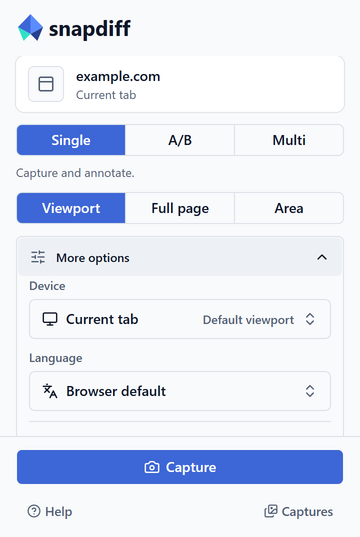
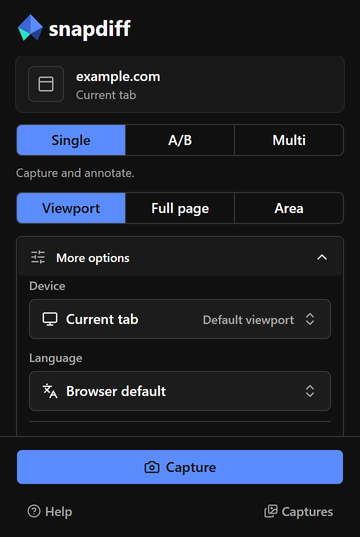
  2. Click SnapDiff, choose Single, and leave Viewport selected.
  3. Start the capture and keep the page visible and unchanged until it finishes.
  4. Review the image in the editor. Add a mark or text, then click Done to keep your changes.
  5. Download PNG, JPEG, or WebP, or use Captures in the popup to return later.

For a selected region, choose Area, start the capture, then drag and release a rectangle. Press Esc to cancel. For a longer page, choose Full page.

An A/B pair or a Multi group counts as one workflow, not one per image. Free exports include SnapDiff branding and capture timestamps; all formats retain full quality within the allowance.

Updates and reload notices

Browsers normally update extensions installed from their official stores automatically. If SnapDiff asks to reload, save editor changes, wait for any active capture to finish, and use Reload SnapDiff in the popup. Reopen the popup afterward.

Reloading the existing installation keeps saved captures, drafts, settings, and the license. Do not uninstall as a first troubleshooting step: uninstalling or clearing extension storage can delete your local work.

Next steps

On this page