
A/B comparison
Compare two screenshots to see what changed between versions.
Review a before-and-after change, compare staging with production, or check an implementation against an expected page state.
Compare two versions
- Open the expected page, choose A/B, and capture A - expected.
- Open the changed page, reopen SnapDiff, and capture B.
- Review both images in A / B view.
- Use Diff for a pixel comparison when available, then annotate or export.
A and B can come from different websites. Your saved A stays available when you close the popup; you can also resume the draft from Captures.
For selected regions, choose Area before Capture A, then draw an area or select an element. Repeat for Capture B. Chrome keeps your selected responsive viewport; Firefox uses the current tab's layout. The two areas can have different dimensions.
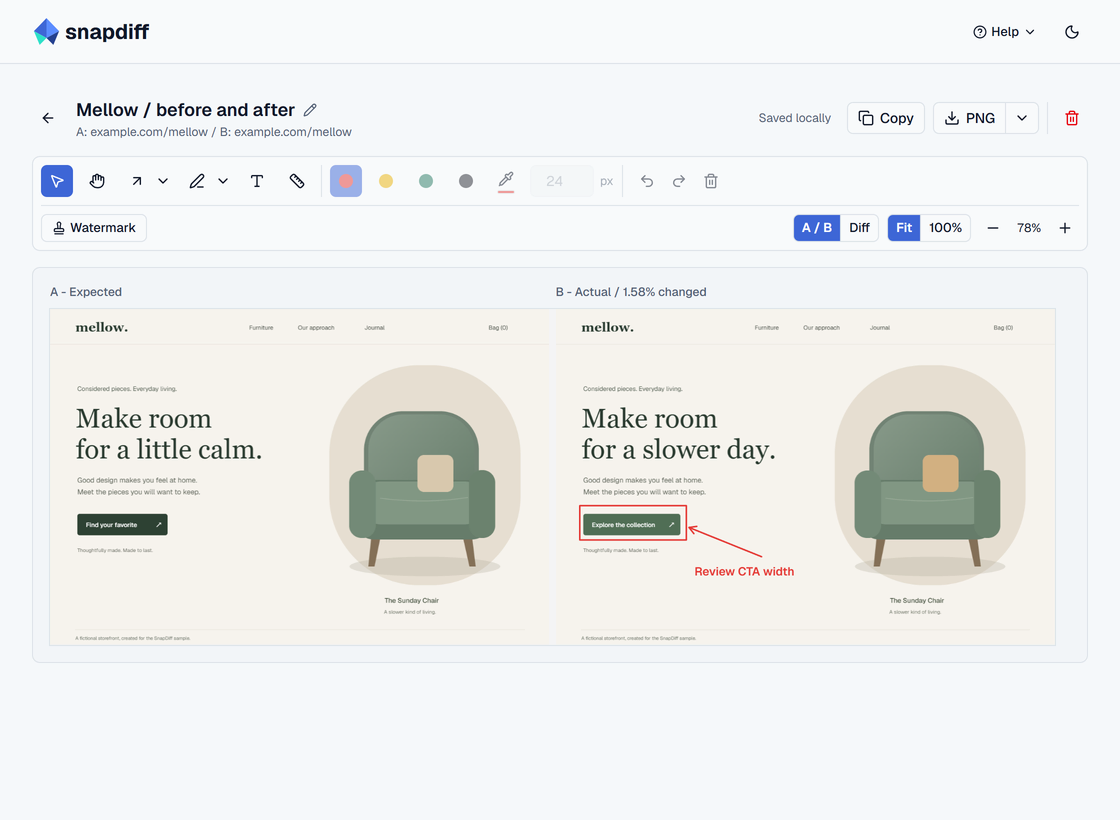
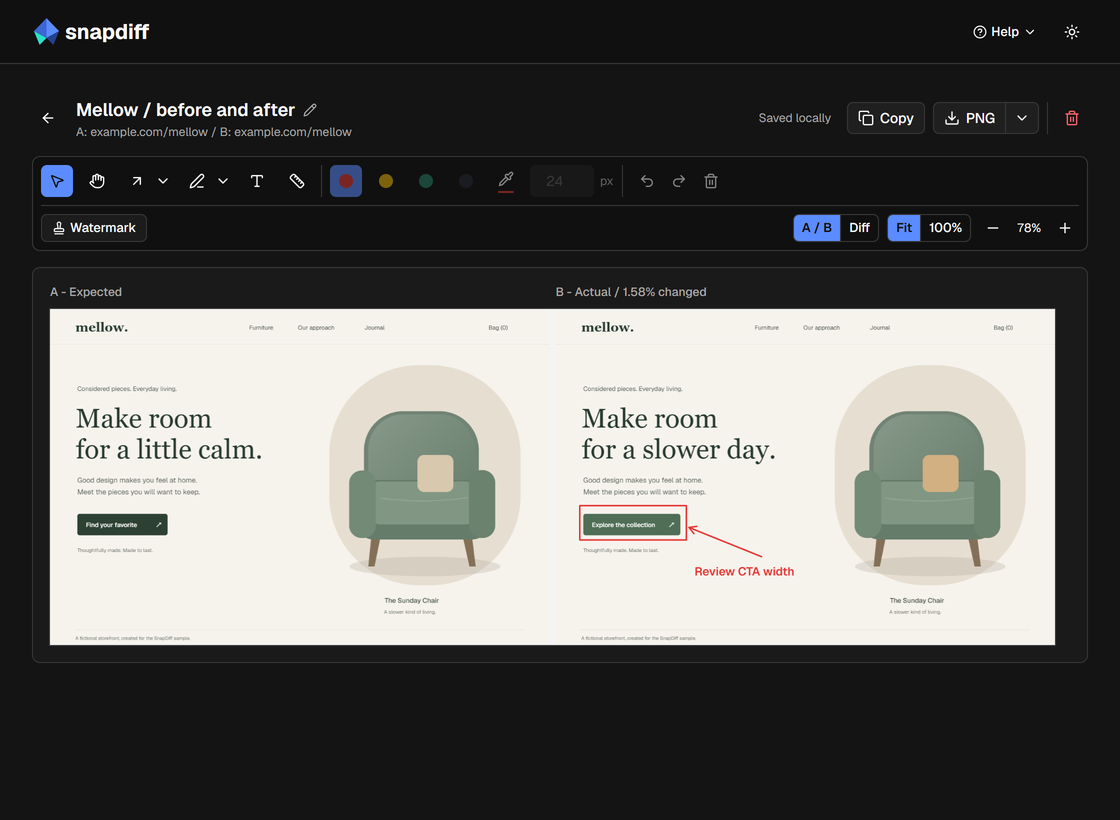
Compare a design mockup with a capture
In the popup, choose A/B, then select the upload icon beside Capture A. Drop a PNG, JPEG, or WebP, paste an image with Ctrl+V / Cmd+V, or choose a file.
In Figma, use Copy as PNG or export a frame. Copying design objects does not copy an image.
Once A is saved, capture B from the browser or use the upload icon beside Capture B to import it. You can capture both sides, import both sides, or mix a capture with an imported image. One upload button appears beside the current capture action: first Capture A, then Capture B.
The popup shows the imported image's name, thumbnail, and dimensions. To replace it, discard the unfinished comparison and start again. Imported images are available only in A/B comparisons.
Image requirements
- Formats: PNG, JPEG, or WebP.
- Maximum size: 32 MiB, 16 million pixels, and 16,384 pixels per side.
- Not supported: SVG, PDF, Figma links, or copied design objects.
- Transparency: transparent areas appear on white. Your source file remains unchanged.
Pixel Diff works when the imported image and browser capture have different dimensions. Both stay at native size and align top-left; areas present in only one image count as changed.
For a clearer result, export the design at the same scale and capture the same region.
Image import is free on Chrome and Firefox. A completed pair counts as one workflow; choosing an image does not use another workflow. Accessibility checks apply only to browser captures. Imported files stay local.
Make the comparison useful
Use the same viewport, zoom, and page state on both sides to focus on the change you are reviewing. Different viewport sizes work well for side-by-side layout review.
Responsive A/B captures can use Diff even when viewport sizes differ. SnapDiff does not resize either image. Matching presets make it easier to separate a UI change from responsive reflow. More about Diff availability.
For more than two versions, use a Multi comparison. See how completed workflows are counted.