
Accessibility checks
Save accessibility findings alongside a page screenshot and review them in context.
Optional local axe accessibility checks are free on Chrome and Firefox. Review saved findings beside the page image; no account or activation is needed.
Run a check
- Open More options in the popup and choose Check accessibility.
- Capture the page.
- Open Accessibility in the editor.
- Select an image to inspect findings, affected elements, and items marked Need review.
The check reviews the loaded page, including when you capture an Area. Run a fresh capture with checking enabled whenever you want an updated report.
The Accessibility button appears when at least one image has a saved result. In a comparison, choose an image to view its result; images without one show Not checked or Not applicable.
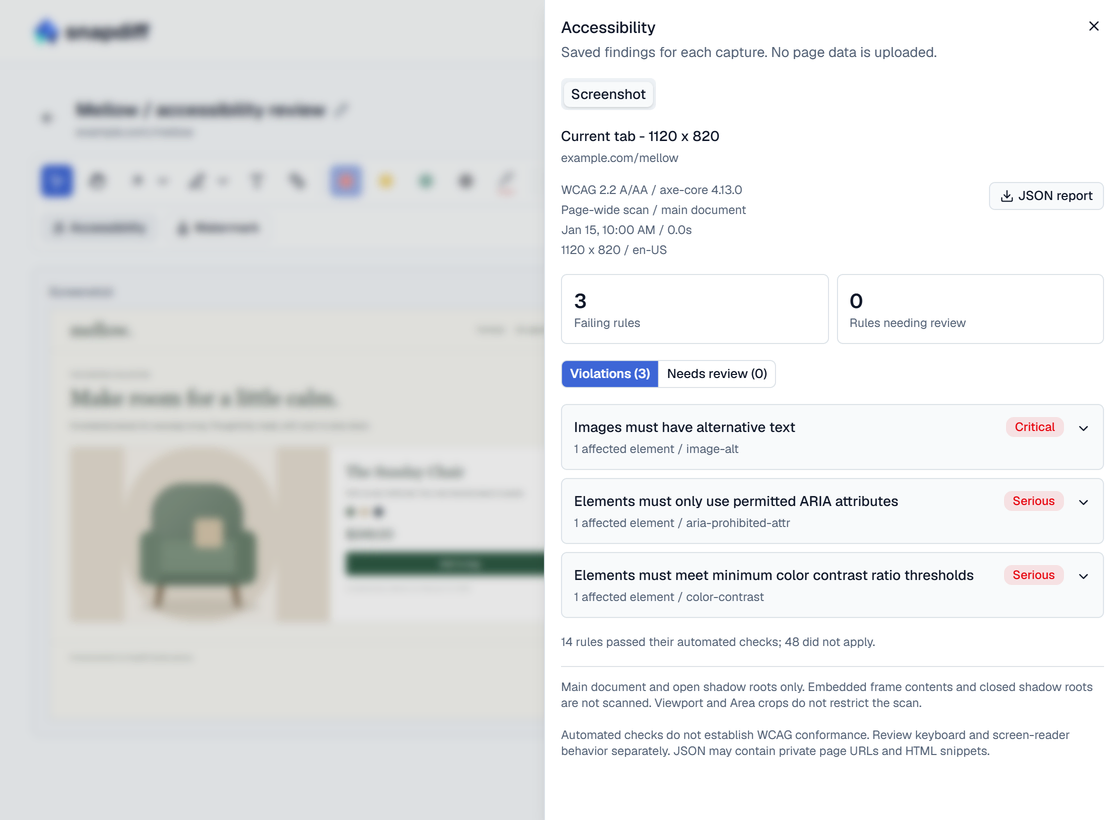
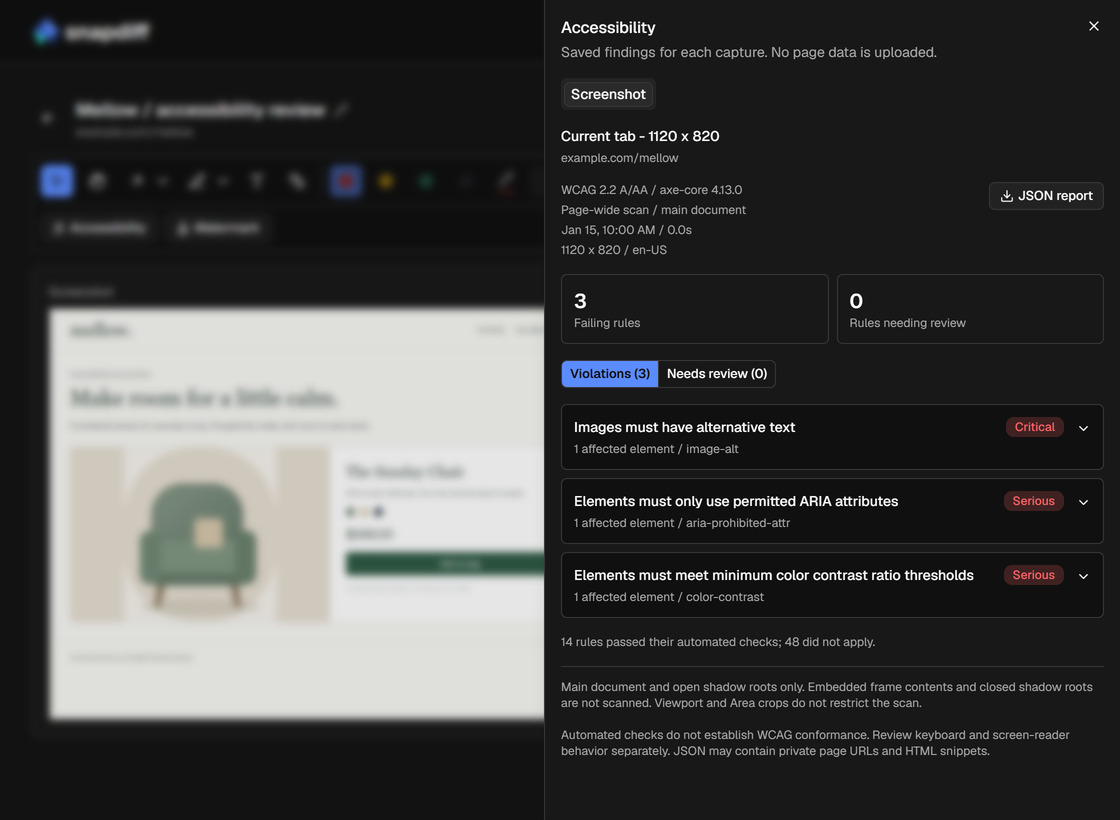
Use the findings
Start with the reported issues, then investigate items marked Need review. Include keyboard navigation and screen-reader review as part of your accessibility work; automated checks are one part of that review.
Not checked means no scan was saved. For Scan failed, capture again with checking enabled. Automated checks find common issues, but not every accessibility problem, so include keyboard and screen-reader review.
Export a report
In Accessibility, select the image and choose JSON report. Review it before sharing: reports can include page URLs and HTML snippets.
Next: annotate a finding or export the screenshot.